
|
POSTING PICTURES AND LINKS ON THE UKRGB & UKSKGB COMMUNITY FORUMS POSTING IMAGES - from a computer. The first thing you need to understand is that our Forum doesn't let you just upload pics from your computer into a message. Some others do, our's doesn't. You need to host the pics somewhere. Photobucket, ImageShack and Picasa appear to be popular, but there are others of course and if you have your own webspace then you can link to that as well. If you have a Facebook account, you can also link from images on it by opening the image, right click it and select "copy image URL". Note though that at best this will only work in the short term as Facebook image links seem to be unstable. Have a look at this discussion on the Community Forum - this one is also helpful - they may just be all you need to work out how to post an image. Here's a similar bit of help on posting quotes and hyperlinks. If you use Photobucket to host your pics, see these detailed instructions. Prefer ImageShack? Then see this discussion for instructions. Here's the link to ImageShack. Or, maybe you'd like to use Picasa. We also have a .PDF with a Quick Reference Guide which might help. If you still need help, come back to this article for a lot more detail and explanation. There is a maximum image size which the forum software will allow you to post - 1024x1024. The forum will then automatically resize it to 640 and will also create a slideshow if there is more than one image. This is viewed by hovering the cursor over the picture. Clicking the image will open the full size original. Should you get an error message telling you "It was not possible to determine the dimensions of the image" when using Picasa, then see this post from GrahamKing with a workaround. POSTING IMAGES - from a phone or tablet. Many people use the Tapatalk app to view the forum on a mobile device, and this allows easy uploading of pictures on that device directly from it, without having to use a third party host. If you've been able to work out how to reply to a forum discussion in Tapatalk then it's obvious how to attach a picture. My own experience is limited to this app on an iPhone. I guess other devices are similar.
NOTE - The screen grabs in this article show a slightly earlier version of the Guidebook's forum - but the principles are the same on the current version. The biggest change is that the "close tags" button is no longer provided as clicking the IMG or URL button will bring up both the tags, like this [img][/img] or [url][/url] The cursor will be between the [img] and [/img] tags or [url] and [/url] tags and you need to make sure the web address you are entering is placed there. You can do it manually of course by just entering the tags as shown. So, what do you want to do? • I want to post a picture in my message on the Community Forum. • I want to post a picture linked from a bit of text. • I want to post a picture linked from someone else's website. • I want to make a link to another site or a page in another site, or another discussion on the forum, using a bit of text. • I want to reply to a post on the Community Forum. • I want to edit my post on the Community Forum, or delete it. • I want a .PDF with a downloadable Quick Reference Guide I can refer to.
• I want to post a picture in my message on the Community Forum. The first thing to know is that you need somewhere to host your images - the Community Forum doesn't have the facility to just include an image within a message. Photobucket is one, another is www.imageshack.us/ . Its really simple to use, and when the photo is uploaded you can just copy and paste a 'link to forum' and the picture will appear on the Forum site. They also have a handy image resizer for you to download and use. It means you can resize the picture and upload it with 2 clicks of the mouse! The maximum image size is set at 1024x1024. If you are able to alter the image quality (or resolution) then using something like "medium" quality will generally produce a perfectly acceptable image for use on the web, and as this reduces the size of the image file it'll load more quickly. If you have a "Save for Web" option in your photo-editing software, use that instead of just "save as". It's also possible to just post a "thumbnail" (very small) image and use it to link to the full-size version - have a look at this discussion on the Community Forum for details, and more thoughts on image size / quality. As well as Imageshack, other hosting services are available, and indeed most ISP's provide the ability to host pictures or space you can use. Wherever you host your images, the basic principle is to add the web address (the URL) for the picture within the body of your message using the IMG tags. The system then links to the picture and it displays in the message. It's important to understand that you need the address (the URL) for the image you want. Note that the URL must be the address of a JPG, JPEG, GIF or PNG file, otherwise the forum software won't know what to do with it. Some servers make it difficult or even impossible to get this address, in which case you are out of luck. Others deny requests that aren't from their own web pages so even when you have done everything right the image still won't display in your message. You can get the URL of the image by right-clicking the
image, choosing Properties, and copying the address from the image properties
dialogue. If you are a Firefox user, right click then choose Copy Image
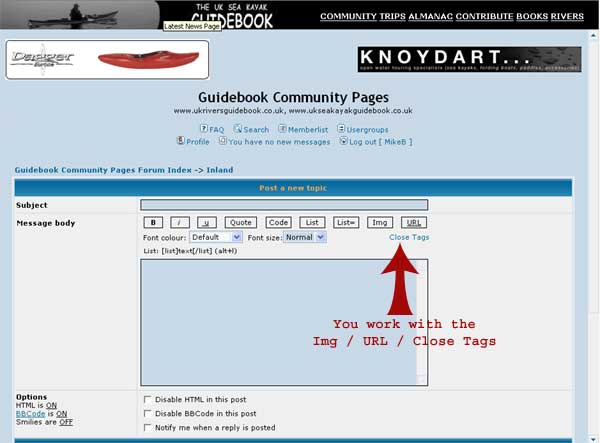
Location for a handy shortcut. (Thanks to SteveB for this detail). Your first step is to open the Community Forum you want to post in, and then click the New Topic (or Post Reply) Buttons as appropriate. You get this:
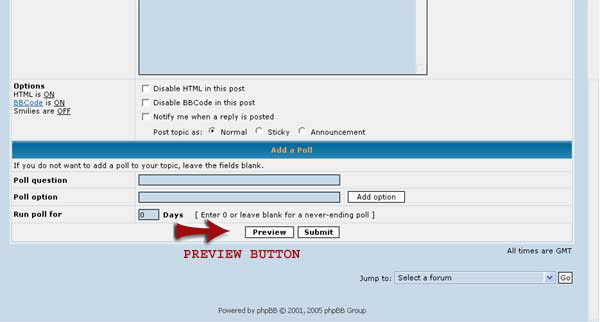
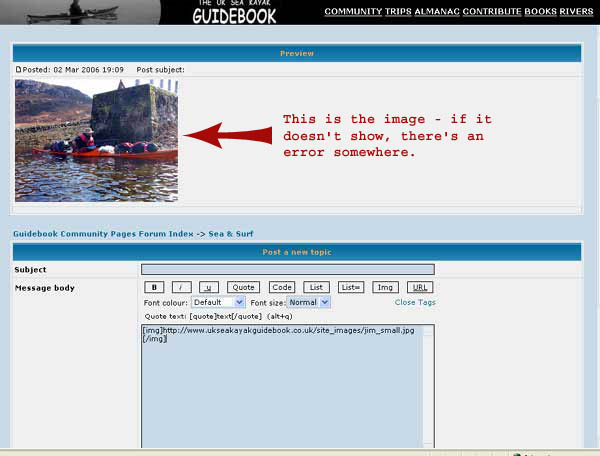
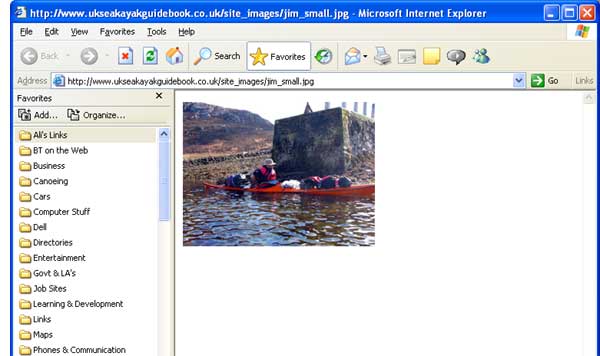
Give it a Subject. Type some stuff, and then you decide you want a picture or a link to one. Note the Img / URL / Close Tags options - you work with these. You'll recall that you first need to have your image hosted somewhere - you're going to link to that in your post. By way of example, to bring in an image which is currently hosted on UKSKGB's server at "http://www.ukseakayakguidebook.co.uk/" - in the folder called "site_images" - the famous image of Jim Wallis' method of loading a sea boat titled "jim_small.jpg", the entry is going to look like this: [img]http://www.ukseakayakguidebook.co.uk/site_images/jim_small.jpg[/img] (Naturally you'll be substituting your own host's address and image name in place of "http://www.ukseakayakguidebook.co.uk etc " and no, we can't host images for you unless they are part of an article on the site, or you've submitted them to UKSKGB or UKRGB for use. Sorry.) To do this when creating a message, once you're in the Community / New Topic or Reply dialogue described above, and in the Message Body box, first click the IMG Tag Button. That inserts this: [img] - (that tells the system that there's an image to be found and the address which follows is where to look for it). Then type or copy and paste the entire web address of your image. In this example, it's "http://www.ukseakayakguidebook.co.uk/site_images/jim_small.jpg" which you'll recall is where the image is located in UKSKGB. Now click the "Close Tags" link. That inserts this: [/img] - (that tells the system that the addressing has finished and everything after that has nothing to do with the address and can be ignored as far as finding the image address is concerned). Clicking the Preview Button then allows you to see what the message will look like before you actually Submit it to the Forum. The screenshots below are of the Preview Button and the Preview Screen from the Community Forum New Message dialogue and shows the picture as it'll appear in the message, with the coding below it. If the image doesn't show on preview, something's wrong - probably with the addressing, or the tags haven't been entered correctly.
Clicking the Preview Button will give you this:
If it works, and you're happy with it, click the Submit button. That's it! If it worked, well done.
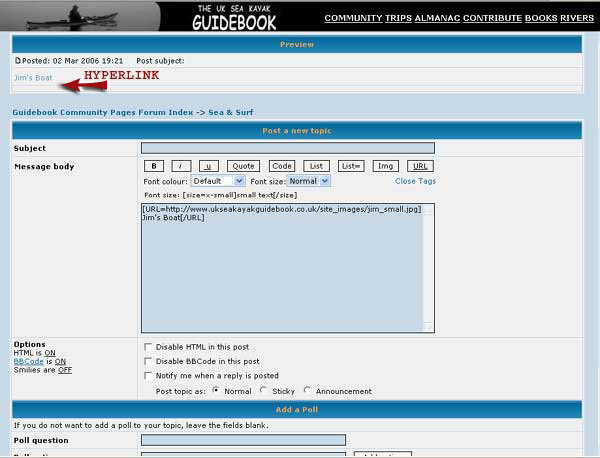
• I want to post a picture linked from a bit of text. If you don't want the image to show, but you want to link to it from a bit of text (as in something like "Jim's Boat") the process is as follows but uses the URL tag instead of the IMG tag. What you are doing is telling the system where the image is to be found, but the message will display a bit of text (a hyperlink) which, when clicked, will open the picture. To do this you embed the URL for your picture within the tag and it'll look like this: [url=http://www.ukseakayakguidebook.co.uk/site_images/jim_small.jpg]Jim's Boat[/url] In the Message Body box, click the URL Tag Button. That inserts this: [url] I find it simplest to then just backspace to delete the ] and then insert = from the keyboard. Then type or copy and paste the entire web address of your image. Then type ] Alternatively, you may prefer to position the cursor just before the ] , add = and then paste or type the URL as that saves doing the manual deletion and insertion of the ] . You can also just type in the coding rather than using the Tag Buttons, it's up to you. Now type the text, in this case "Jim's Boat" Now click the "Close Tags" link. That inserts this: [/url] The entry in the Message Body box now looks like this: [url=http://www.ukseakayakguidebook.co.uk/site_images/jim_small.jpg]Jim's Boat[/url] Click the Preview Button to check it. The screenshot below is of the Preview screen from the Community Forum New Message dialogue and shows the text as it'll appear in the message as a hyperlink, with the coding below it, in the Message Body box.
• I want to post a picture linked from someone else's website. First, it ought to be said that posting images held on other people's servers, without permission, is generally frowned upon. It is seen as 'stealing' their bandwidth because it is their server, not ours, that delivers the image each time it is displayed. It is usually a breach of copyright. And of course the picture won't always be there as they might delete or move it. If you have permission, or if they are your own pictures held somewhere else, you can get the address (URL) of the image by right-clicking the image, choosing Properties, and copying the address from the image properties dialogue. Try it on the snack rock image - it'll show as http://www.ukseakayakguidebook.co.uk/posting_images/image_posting_12.jpg - That's because we're holding a copy on UKSKGB so as not to use Douglas' bandwidth every time this article is opened. If you are a Firefox user, right click then choose Copy Image Location for a handy shortcut. Note that the URL must be the address of a JPG, JPEG, GIF or PNG file, otherwise the forum software won't know what to do with it. Some servers make it difficult or even impossible to get this address, in which case you are out of luck. Others deny requests that aren't from their own web pages so even when you have done everything right the image still won't display in your message. The same basic principles apply as for images. The website / page URL is the address you need and will be found in the browser address bar at the top of your browser screen. Note though that some sites only show the index page for the site, not the actual address for the page you are on. Others will show the entire web address for the specific page in the Address Bar - it depends on how the site is constructed. UKSKGB and UKRGB have recently been changed to this sort of addressing.
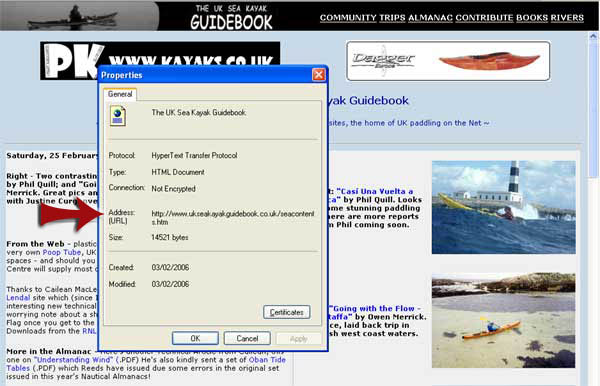
What do you want to do? • I want to make a link to another site, or to a page in another site, or another discussion on the forum. To post a link to another website, at its simplest all you have to do is copy the web address (URL) from your browser Address Bar and use it as the hyperlink. As explained above though, in most cases that isn't going to give you the specific page URL you want, but it'll be fine if all you want to do is link to a site's index or home page. First, right-click in the site page you want to link to. Most browsers will allow you to do this - I use IE (Microsoft's Internet Explorer) so that's where the screenshots come from. This will bring up the Properties Info Box from which you can copy the address (URL). You do this by highlighting it, then copy it by right-clicking it. If you are a Firefox user, right click then choose Copy Image Location for a handy shortcut. For example, doing this on UKSKGB's front page will produce "http://www.ukseakayakguidebook.co.uk/seacontents.htm" as per the screenshot below. The actual page content and pictures will be different (this is the page as at 3 March 2006) but the Properties Address will always be the same for the front page. Don't click on an image though - click "in" the page. You're looking for the address of the page you want to link to. In this example, I'd suggest clicking in the light blue bit, or the light grey bits - don't click in the black header bar or an ad. If your browser doesn't support right-clicking to bring up the Properties Box you could always just copy the URL from the Address Bar although you'll recall that doesn't always show the address for the page you are actually on, and may just show the main site address.
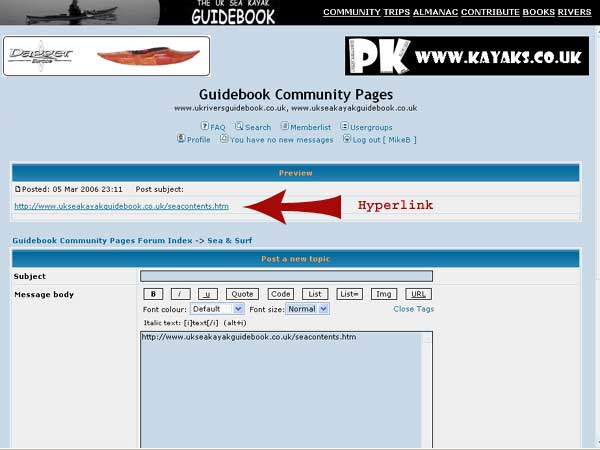
The entry is going to look like this: http://www.ukseakayakguidebook.co.uk/seacontents.htm In your message, just type or paste the entire web address, in this case it's http://www.ukseakayakguidebook.co.uk/seacontents.htm - the software will automatically convert it to a hyperlink for you. There's no need to use the URL or Close Tags buttons. Click the Preview Button. Here's the screenshot showing what it looks like once you've clicked the Preview Button. As before, the hyperlink should work when clicked from within Preview. (WARNING! - if you want to check the hyperlink works, then don't just click it in the preview box! If you do that, it may open the link in the same window and when you click back to return to your message, you'll find all your entry has gone! Open the link in a "new window" or tab by right clicking it in preview.... )
If it's ok, click Submit.
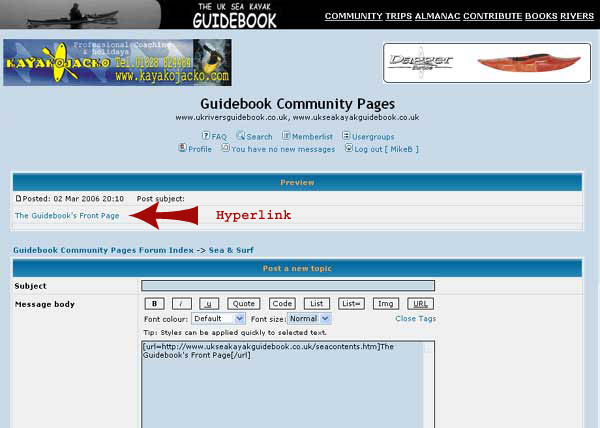
• I want to make a link to another site, or a page in another site, or another discussion on the forum, using a bit of text. To post a link to another website, at its simplest all you have to do is copy the web address (URL) from your browser Address Bar and use it in the hyperlink. As explained above though, in some cases that isn't going to give you the specific page URL you want, but it'll be fine if all you want to do is link to a site's index or home page. But, as you don't want the URL itself to show, as you want to use a bit of text instead (as in something like "The Guidebook's Front Page") the process is as follows. What you are doing is telling the system where the site or site page is to be found, but the message will display a bit of text (a hyperlink) which, when clicked, will open the site. To do this you embed the URL for the site or page within the tag, with the text you want to use - it'll look like this: [url=http://www.ukseakayakguidebook.co.uk/seacontents.htm]The Guidebook's Front Page[/url] In the Message Body box, click the URL Tag Button. That inserts this: [url] I find it simplest to then just backspace to delete the ] and then insert = from the keyboard. Then type or paste the entire web address of the site or the page you are linking to. Then type ] Alternatively, you may prefer to position the cursor just before the ] , add = and then paste or type the URL as that saves doing the manual deletion and insertion of the ] Now type the text you want as the hyperlink, in this case "The Guidebook's Front Page" Now click the "Close Tags" link. That inserts this: [/url] The entry looks like this: [url=http://www.ukseakayakguidebook.co.uk/seacontents.htm]The Guidebook's Front Page[/url] Click the Preview Button. The screenshot below is of the preview screen from the Community Forum New Message dialogue and shows the text as it'll appear in the message as a hyperlink, with the coding below it. As before, the hyperlink should work when clicked from within Preview. (WARNING! - if you want to check the hyperlink works, then don't just click it in the preview box! If you do that, it may open the link in the same window and when you click back to return to your message, you'll find all your entry has gone! Open the link in a "new window" or tab by right clicking it in preview.... )
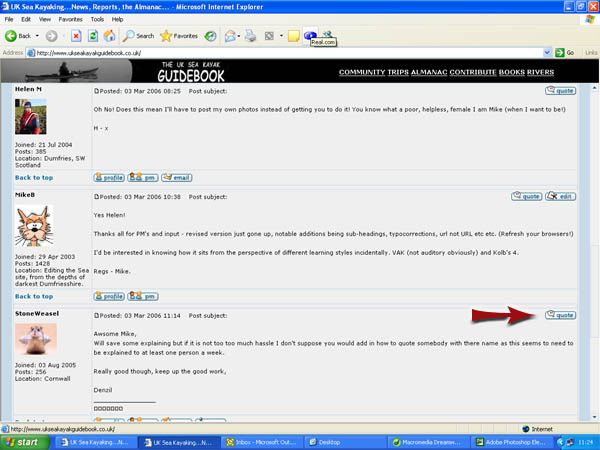
REPLYING TO POSTS You can just reply to a post, or you can include a quote from the original - this sometimes helps people understand the context. You can also include pictures and links of course, as outlined above. What do you want to do? • I want to reply to a post on the Community Forum. Click the Post Reply Button at the bottom left of the screen. Type in your message, remembering we like appropriate Capitalization and at least some effort with spelling and grammar - click Submit (or maybe Preview first and if you're happy with it, then Submit) and that's it. • I want to reply to a post on the Community Forum - and I want to include a quote from the original message, with the posters name. Easy. Click Quote on the right hand side of the screen, for the message you want, instead of clicking the Reply Button. The screenshot below shows me doing just this for my reply to StoneWeasel who asked for this description. If necessary, I'll sometimes copy several quotes to reply to multiple posts in the same reply. Or use multiple "pastes", deleting text as appropriate, to allow me to reply to a series of bits of a long post by quoting specific bits, quoting again and replying to the specific bit and so on.
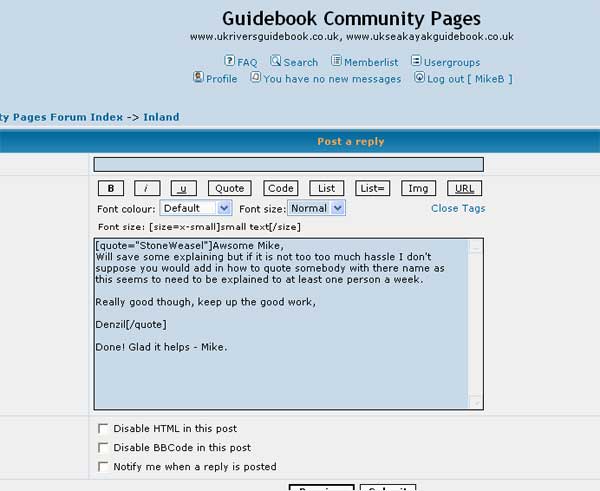
Now you get this - I've typed my response ("Done! Glad it helps - Mike") below the quote as you can see.....
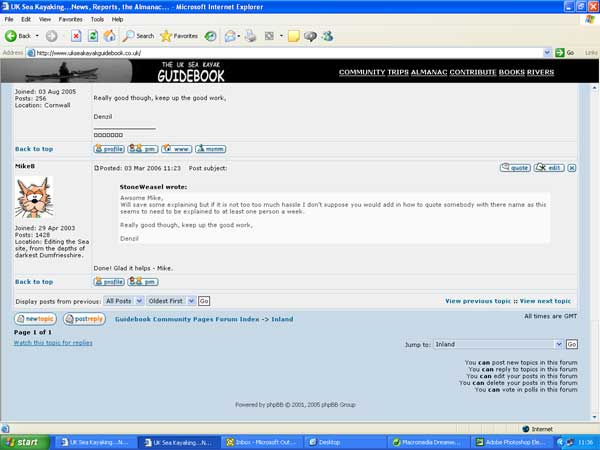
Note the original text comes over with [quote="StoneWeasel"] then the original text, then [/quote]. You can obviously edit the original quote and accepted practice would be just to retain the bit relevant to your reply. Naturally, using the combination of opening and closing tags manually, you can do it and not have to click "quote". I've left Denzil's entire post, and not deleted anything. Click Submit. Job done. Here's a screenshot showing the final result for the post in this example as it appears on the Community Forum (opens in a new window):
• I want to Edit my post on the Community Forum. As a registered user, you can use the Edit button and we allow editing for 20 mins after the post has been made. After that, tough, it's there for posterity.
I hope this helps - if however you find any errors or omissions here, or have any constructive suggestions as to how to improve these instructions, let me know via the site. Thanks to Douglas Wilcox for his help, to "lister" and others for the suggestion re image hosting and to those others on the Community who commented or gave feedback as this work was developed. I will try to help with general problems with getting an image to display if you mail me or pm me but please don't ask me to help with hosting, problem solving with image hosts or techy stuff about browsers etc. Please be patient if you don't get an immediate reply - sometimes I'm off-line for several days, depending on my "real job" workload and my availability. A post on the Community pages will generally produce help as well - we have lots of excellent "technical support" here! Mike Buckley - 2006 (Updated 21-Nov-2015 ) |
~ ~ ~